How I Built a Steam Backlog Tracker with Electron and React
Tackling My Gaming Backlog With Code
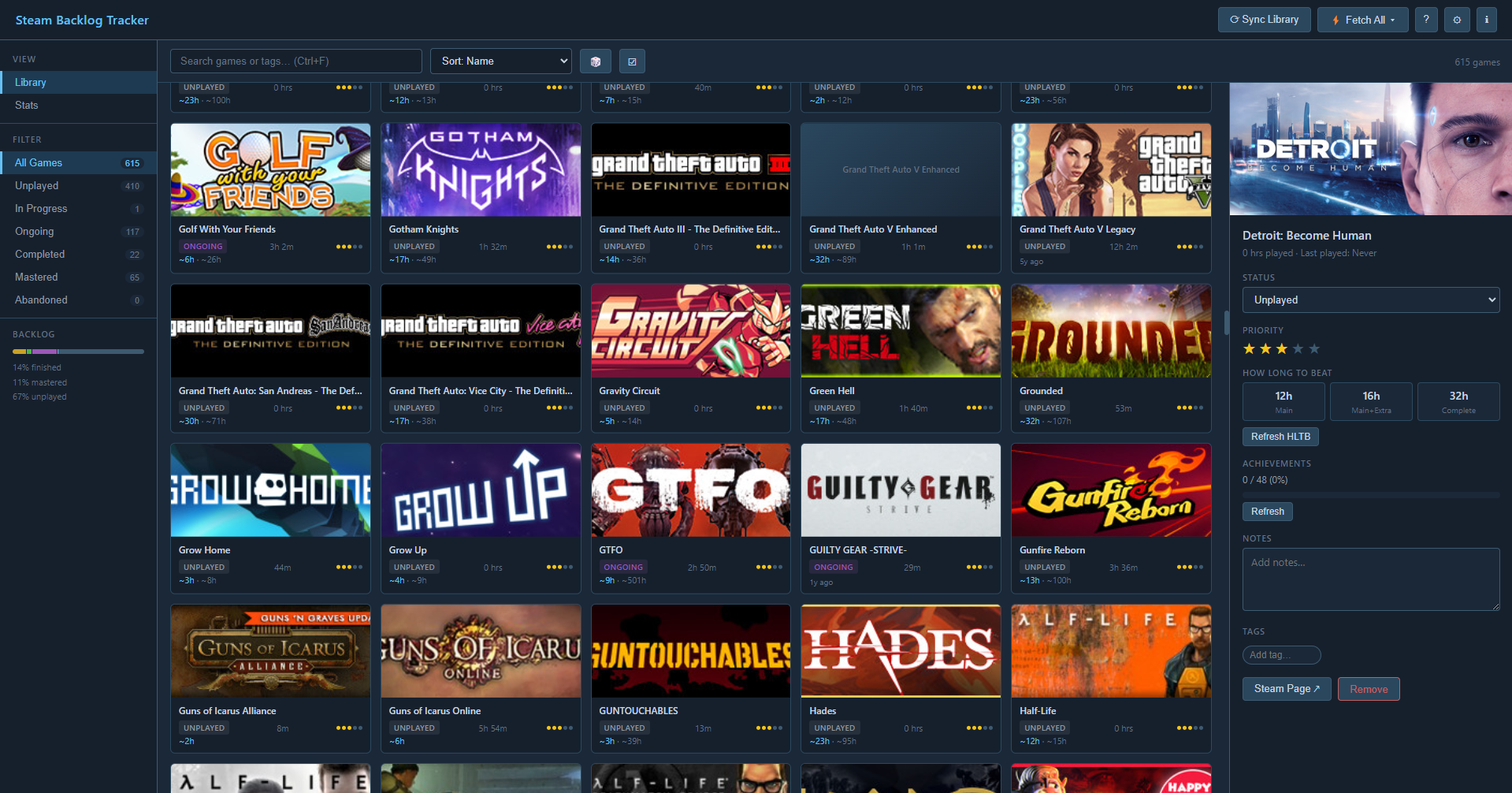
Like a lot of gamers, I have an embarrassing number of unplayed Steam games. Instead of actually playing them, I decided to build an app to track them. The result was the Steam Backlog Tracker, a Windows desktop application that syncs your Steam library, lets you set a status per game, pulls time-to-beat estimates, and gives you a stats dashboard to visualize the damage.
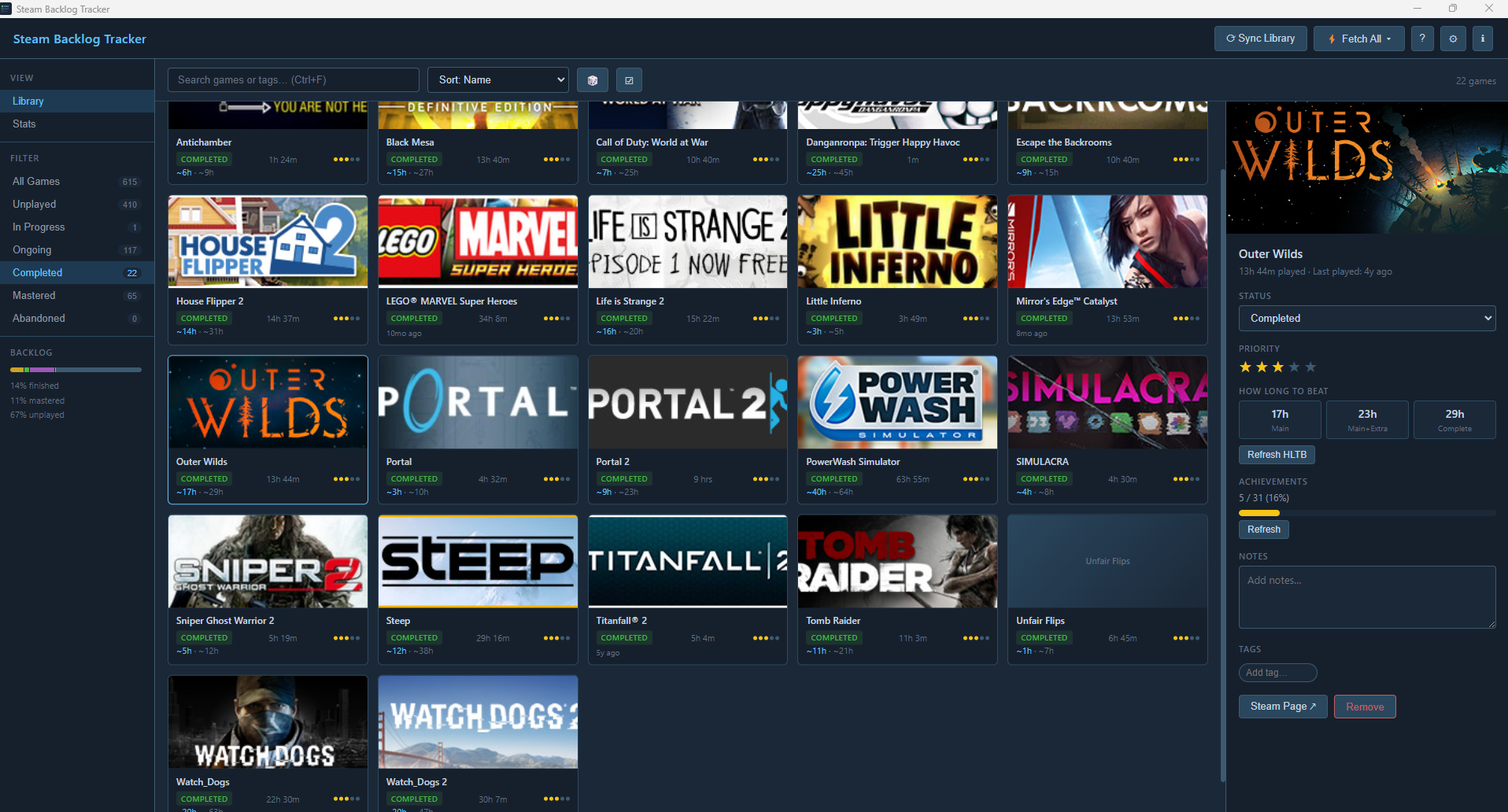 The main game grid with filters open in the sidebar.
This project pushed me into territory I hadn’t explored before, specifically desktop app development, inter-process communication, and working with external APIs that weren’t designed to be used together. Here’s what I built and what I learned along the way.
Choosing Electron
My first decision was picking a framework. The app needed to run natively on Windows, store data locally, and make HTTP requests to external APIs without any CORS restrictions. Electron was the obvious fit.
I used electron-vite as the build tool, which pairs Electron with Vite for fast hot-module reload during development. The stack ended up being:
- Electron for the desktop shell and Node.js backend
- React 18 + TypeScript for the UI
- electron-store for persistent local storage
- @tanstack/react-virtual for virtualized scrolling
The virtual scrolling was a must. Without it, rendering 500+ game cards at once would have killed performance.
The IPC Bridge
One of the trickiest parts of Electron development is understanding the separation between the main process (Node.js, file system, network) and the renderer process (the React UI). They can’t call each other directly for security reasons.
I set up a preload script that exposes a typed api object to the renderer, acting as a bridge:
1
2
// renderer calls this
const result = await api.steam.import()
Under the hood, this triggers an IPC call to the main process, which handles the actual Steam API request and writes the result to electron-store. Keeping the data layer entirely in the main process meant the UI stayed clean and stateless.
Designing the IPC interface first, before writing any UI, saved a lot of refactoring later. Treat it like designing an API contract between two separate apps.
Integrating the Steam API
The Steam Web API is well-documented but requires users to supply their own API key and 64-bit Steam ID. I built a settings modal that collects these on first launch.
From there, syncing the library is a single call to IPlayerService/GetOwnedGames, which returns every game the user owns with playtime data and last-played timestamps. On each sync, the app merges the response with the local store, preserving any status or tags the user has already set.
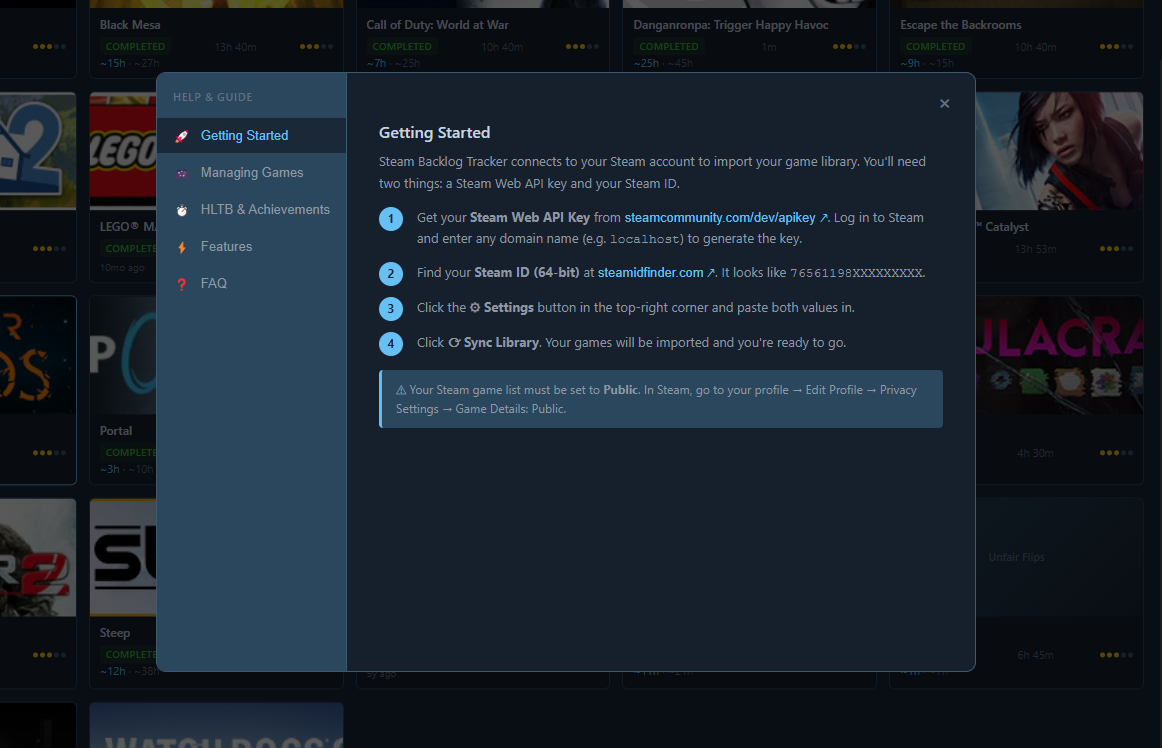 The settings modal where users enter their Steam API key and Steam ID.
Achievement data comes from a separate endpoint, ISteamUserStats/GetPlayerAchievements, called per game. Since this is rate-limited, I built a bulk fetch queue with a 150ms delay between requests.
HowLongToBeat Integration
The most interesting external integration was HowLongToBeat. HowLongToBeat doesn’t have an official public API, so I used the howlongtobeat npm package, which scrapes the site.
Each game can have three time estimates: Main Story, Main + Extra, and 100% Completionist. I store all three and display them in the game detail panel. For the bulk fetch, I added a 1.2 second delay between requests to be respectful to the site:
- Main Story — for when you just want to finish it
- Main + Extra — for side quests and optional content
- Completionist — for the brave
A progress bar with a cancel button keeps the user informed during long bulk operations.
The Stats Dashboard
Once the data was flowing, I built a stats dashboard that actually made the scale of the problem visible.
It shows a playtime distribution across buckets (never played, under 1 hour, 1–5 hours, and so on), a breakdown by status, backlog time-to-clear estimates based on HLTB data, and a top games list sorted by playtime. Clicking any stat card expands a list of the games inside that bucket.
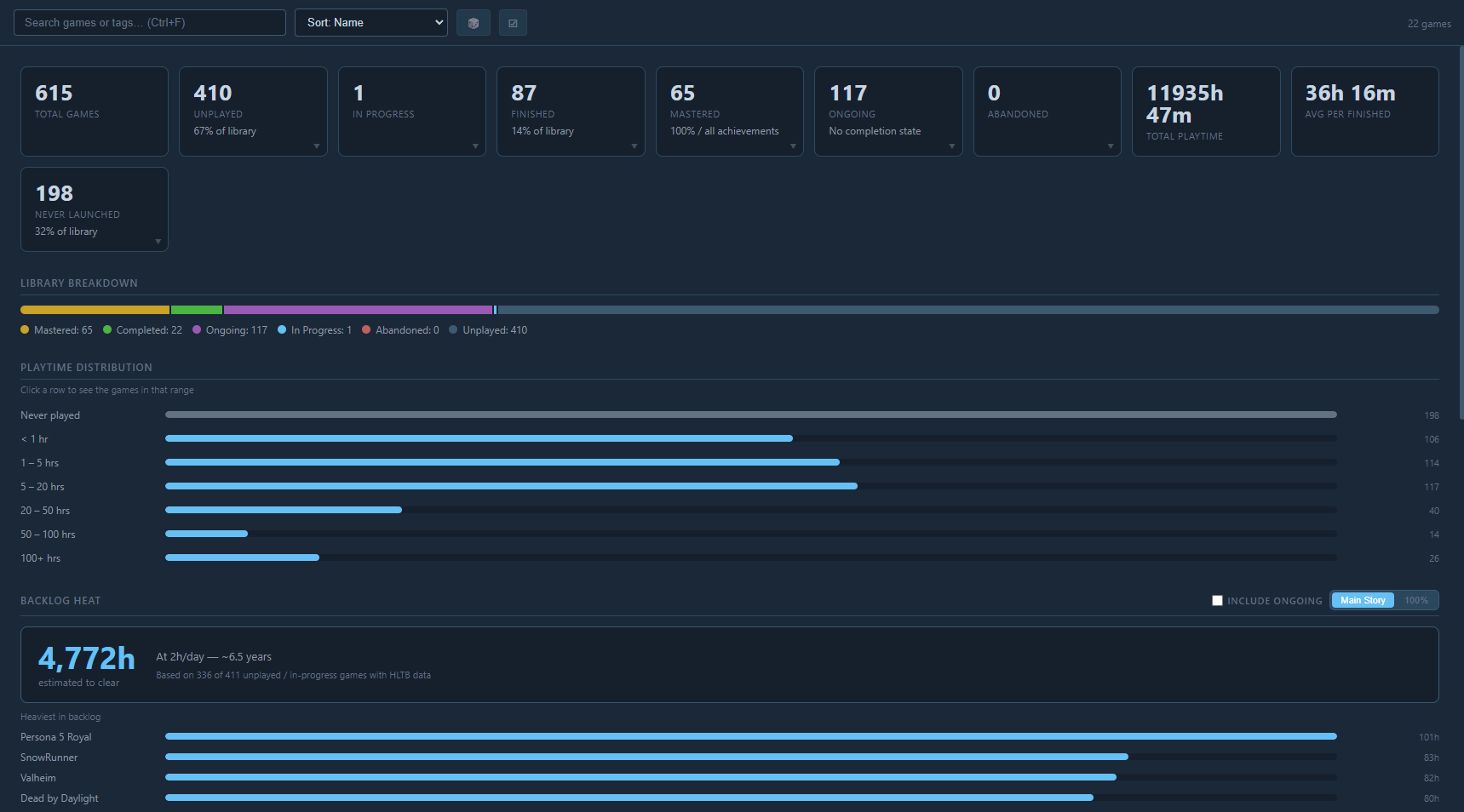 The Stats Dashboard showing playtime distribution and backlog breakdown.
Seeing that I have over 4000 hours of unplayed main story content was sobering.
Packaging for Windows
The final step was turning the app into a distributable .exe installer using electron-builder with an NSIS target. This involved generating multi-size .ico files for the installer and taskbar, setting up a GitHub Actions workflow to build and release automatically on push, and configuring NSIS options for desktop and Start Menu shortcuts.
The CI/CD pipeline now produces a signed installer on every release tag, which I publish to GitHub Releases.
Final Thoughts
This project taught me that a desktop app has layers of complexity a web app doesn’t. You’re managing two separate JavaScript environments, a file system, native OS integration, and a packaging pipeline, all at once.
The Steam Backlog Tracker is fully functional and genuinely useful. I actually use it. If you want to try it yourself, you can grab the installer from the GitHub Releases page.
Now I just have to actually play the games.